If you don’t organize your photos right after a shoot, trust me, they will quickly pile up into a mountain of clutter—impossible to find, hogging storage, and eventually, when your computer runs out of space, your precious memories might get accidentally deleted in a chaotic rush to free up room. I used to be exactly like this, and believe me, it was painful. Today, I’m sharing a simple and highly efficient workflow to help you say goodbye to the chaos and effortlessly manage massive photo libraries!
1. Export Promptly: Don’t Let Your Photos Rot in the Camera
Many people tend to leave their photos on the camera’s memory card, but this is incredibly risky. If the card gets corrupted or lost, your photos are gone forever. Besides, procrastination won’t magically organize your files. It’s best to export, filter, and delete bad shots as soon as possible. This prevents you from accumulating a massive “editing debt” and saves you precious time in the long run. Furthermore, when a card is packed with files, the camera takes longer to read it—meaning by the time your camera finally boots up, the perfect moment has already passed.
So, first, build the habit of importing your photos to your computer or external drive on the very day of the shoot. It’s also a good practice to format your memory card periodically—just make sure everything is fully backed up before you do.
2. Standardize Naming for Effortless Searching
Messy folders (like “111”, “New Folder (3)”, or “hahahaha”) will drive you crazy when you try to find something later. Your folder naming should follow a clear, consistent rule:
Example Folder Structure:
📁 Photo Library
   └── 📁 20240321_WestLakeSunset (Date + Theme)
       ├── 📁 RAW (Optional, for original files)
       └── 📁 JPG (For final edited images)
File Naming Suggestions:
Honestly, once you have a dedicated, systematically named folder structure, individual file names matter less. Personally, to prevent the original shooting date and time from being wiped during editing, I use this format:
Device + Date + Time: M4_20240320_173022.jpg
💡 Pro Tip: Use batch renaming tools (like Adobe Bridge, Lightroom, or XnView MP) to create a renaming template for a much faster workflow.
3. Filter and Rate: Master the Art of Letting Go
Keeping all hundreds of photos taken in a single day not only slows down your workflow but also wastes an immense amount of storage.
Common Tools:
- Lightroom: Rate 1–5 stars, categorize with color labels (Red/Yellow/Green).
- Bridge: Same as above. Personally, I use Bridge more than Lightroom.
- Free & Powerful Alternatives: XnView MP, Darktable, and DigiKam are all excellent options that offer features comparable to paid software.
Filtering Logic:
- Using Bridge as an example: First, click on
Folder Mode, openWindow -> Filterat the top, select a photo, and press theSpacebarto go fullscreen. Use the left and right arrow keys (⬅️➡️) to navigate. - First Pass (Rough Cut): Identify blurry or poorly exposed shots. Give them a low rating, like “1” (simply press the number key on your keyboard). Once done, check the 1-star box in the
Filterpanel on the left, select all, and delete them. - Second Pass (Rating): Rate the remaining photos (1–5 stars) (e.g., 3 stars = decent, 5 stars = exceptional).
You can also adopt a system like mine:
- 1 Star - Tourist snaps / snapshots
- 2 Stars - Selfies or photos of friends
- 3 Stars - Creative work
- 4 Stars - Stock photo submissions
- 5 Stars - Masterpieces that I’m incredibly proud of
4. Color Grading and Editing
Before you jump into editing on your phone, doing a quick batch process of basic adjustments on your computer will save you a massive amount of time.
Steps:
- In Bridge, select all the filtered photos, press
Ctrl + R(Command + R), and open them in Camera Raw. - Select a reference photo, adjust the exposure, highlights, shadows, white balance, tint, and overall color style (using the Color Mixer).
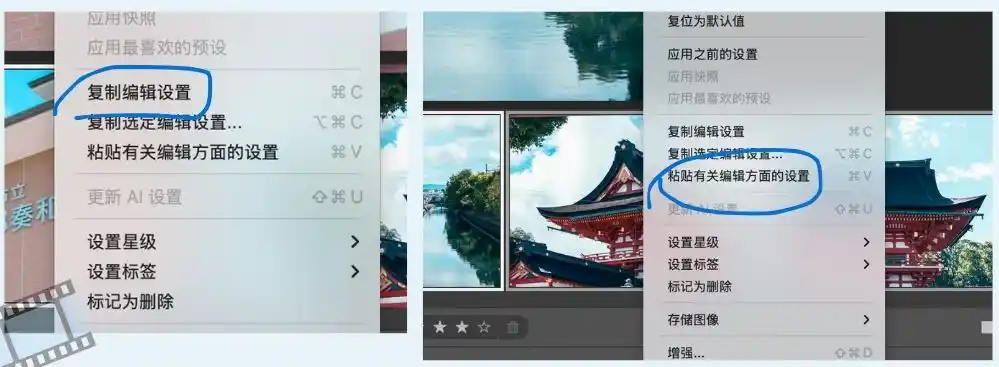
- The Copy-Paste Magic: Right-click, select
Copy Settings, select all photos, right-click, and choosePaste Settings.
- Fine-tune individual photos: If the lighting changed in some shots or you want to crop/recompose, optimize those individually.
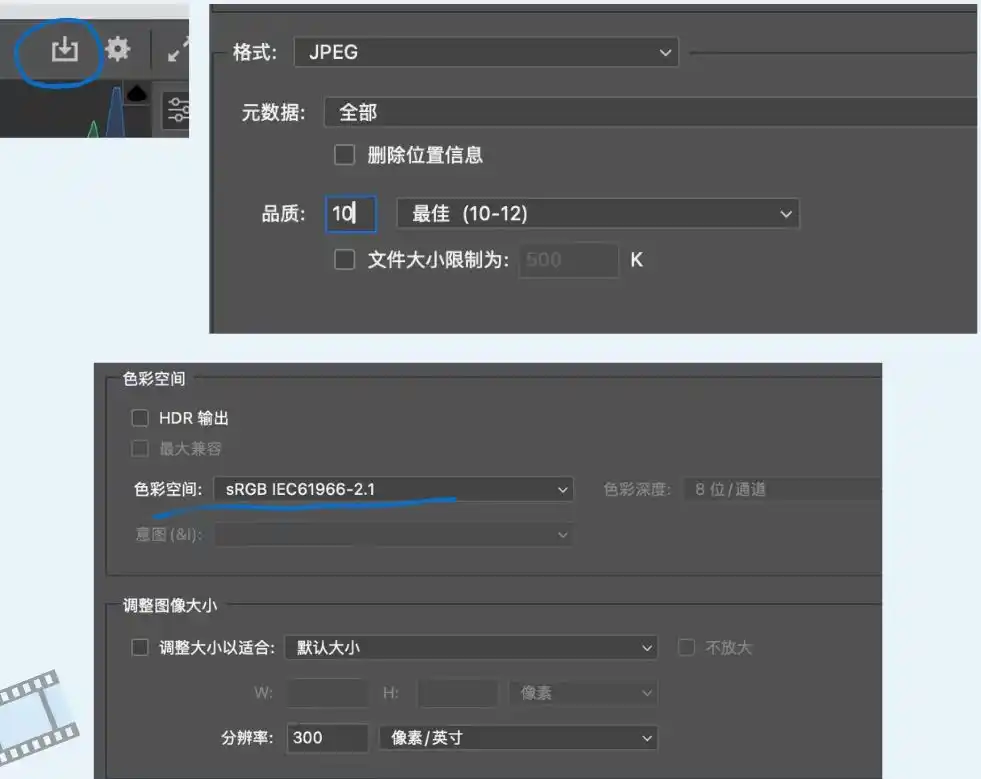
- Once done, select all photos and click the export icon
⬇️in the top right. Choose your destination folder, set the format to “JPG”, quality to 10 (which is plenty), color space to “sRGB”, and confirm the export. If needed, you can now transfer them to your phone for further creative editing.
5. Backup! Always Backup!!
The Golden Rule: Always keep at least two copies of your photos, preferably three, and never in the same physical location!
Recommended Backup Strategy: The 3-2-1 Backup Rule: Keep 3 copies of your files, on 2 different types of media, with 1 copy stored off-site. Here is how you can implement it:
-
Local Backup:
- Primary Storage: Your computer’s internal drive.
- Secondary Storage: An external hard drive (regularly updated).
-
Cloud Backup: Cloud storage services like iCloud, OneDrive (great for JPGs), or Google Drive.